Open Genius Studio in its own browser tab for more room to manage deals and buyer outreach. This guide shows you how to open the workspace, verify your calling number, and start a call.
This guide is for Dispo Genius users accessing Genius Studio through GoHighLevel (GHL).
Make sure your account has the GoHighLevel app update that enables the new-tab experience and calling access.
Have access to the phone number you want to verify. You'll need to answer an automated verification call.
Use a microphone or headset, and allow microphone access when your browser asks.
Sign in to the correct GoHighLevel sub-account.
Select Genius Studio in the left sidebar.
Continue in the new Genius Studio browser tab.
You can keep GoHighLevel open for Conversations or Contacts while working in Genius Studio.
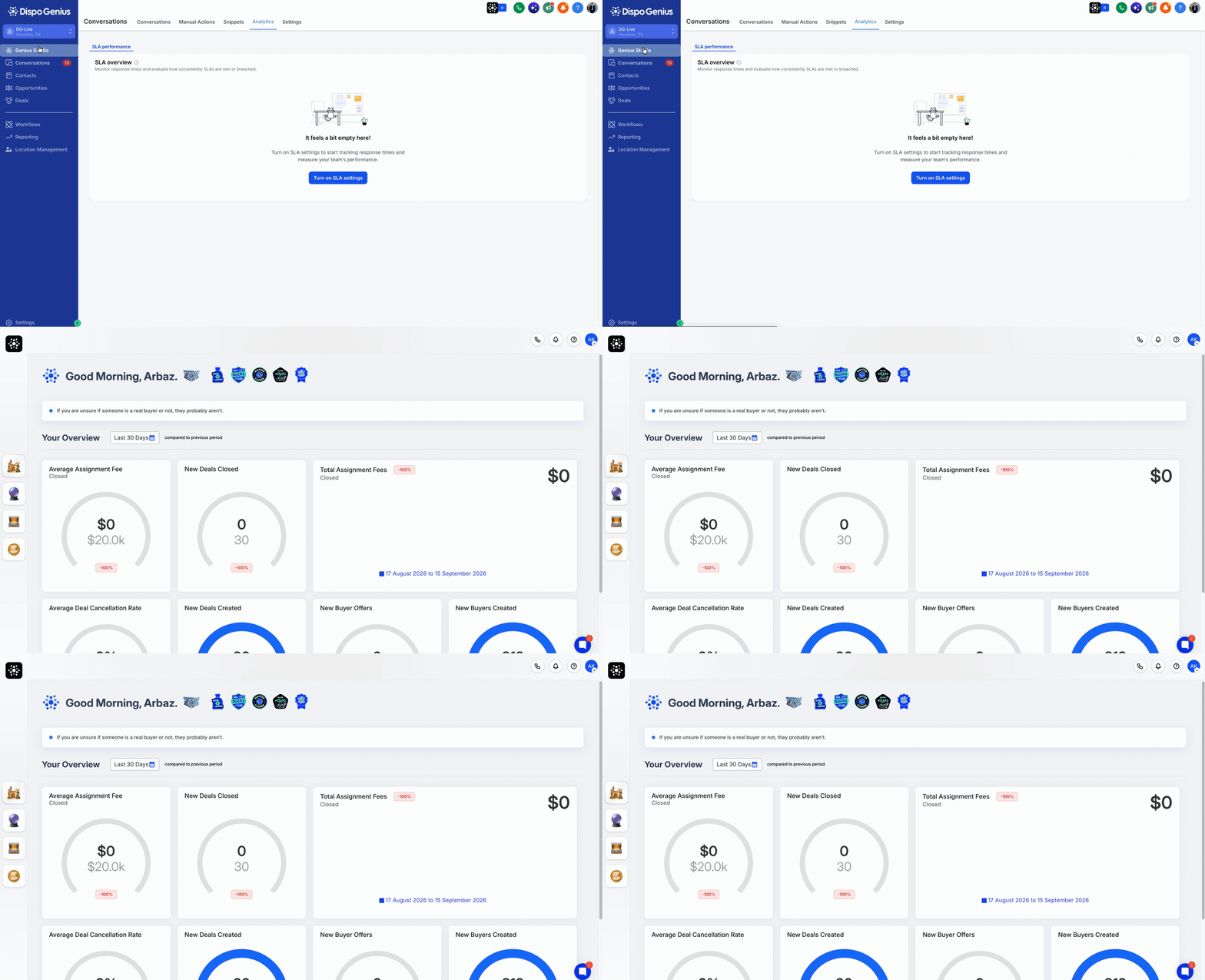
Open Genius Studio from GoHighLevel and continue in a separate tab.
If a new tab doesn't open: Check whether your browser blocked it. If Genius Studio still opens inside GoHighLevel, ask your account administrator or Dispo Genius support to check the app update.
In Genius Studio, open your profile avatar in the top-right corner.
Go to Settings → Communications.
Select + Add.
Choose Select from CRM to pick an existing number, or Add your own to enter a number you control. Add a label, such as “Main line.”
Select Verify number.
Answer the automated verification call. Enter the code shown on your screen using your phone's keypad.
Follow the on-screen instructions until the number is confirmed as verified.
Use a number you control. If you want to use an existing GoHighLevel number, make sure you can receive and answer the verification call on that number.
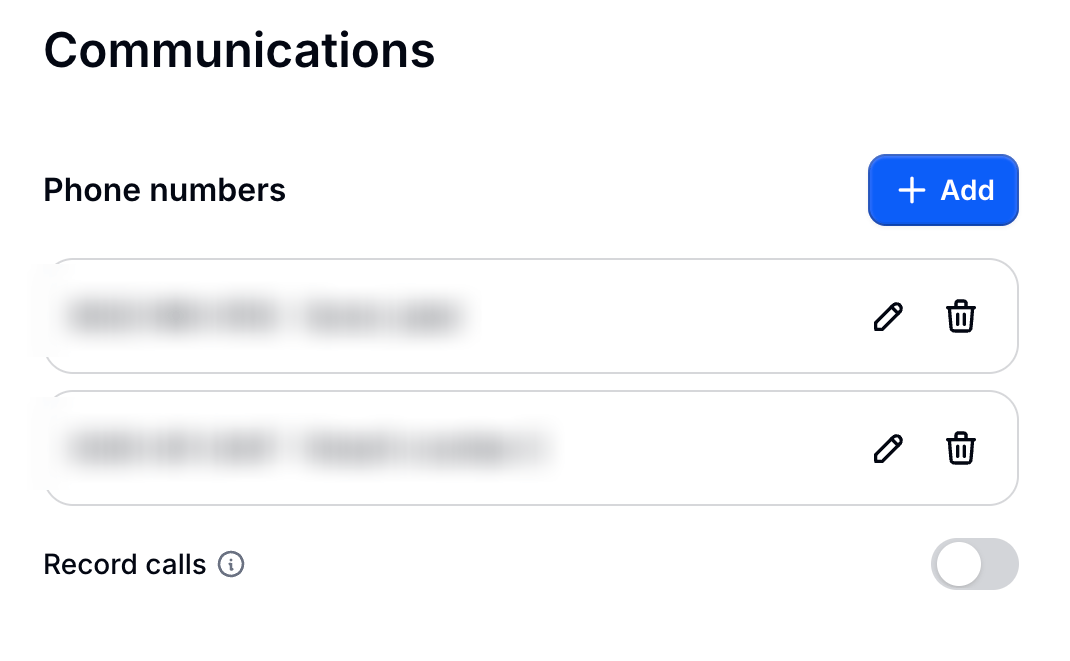
In Settings → Communications, select + Add to add a calling number. Contact details are hidden.
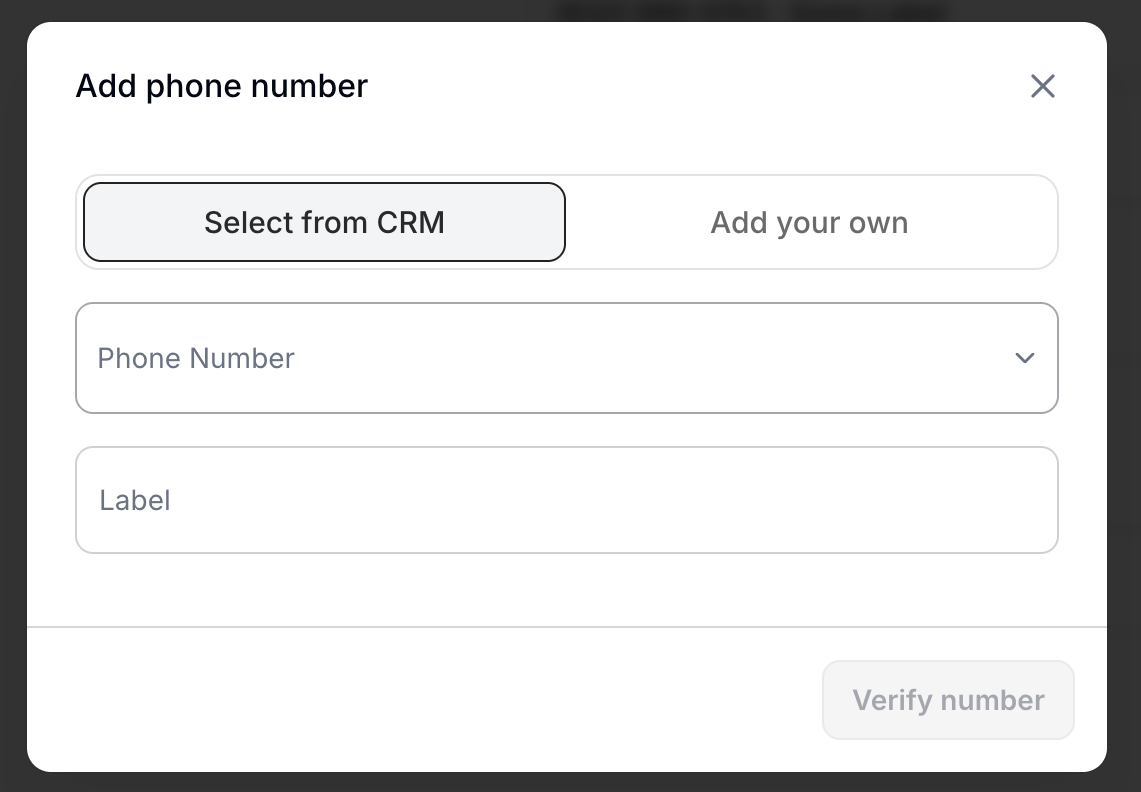
Choose Select from CRM or Add your own, enter a label, then select Verify number.
Open your profile avatar again.
Find the Phone Number dropdown.
Select the verified number you want to use for outbound calls.
Verifying a number and selecting it as your active line are separate steps. Select your line before starting a call.
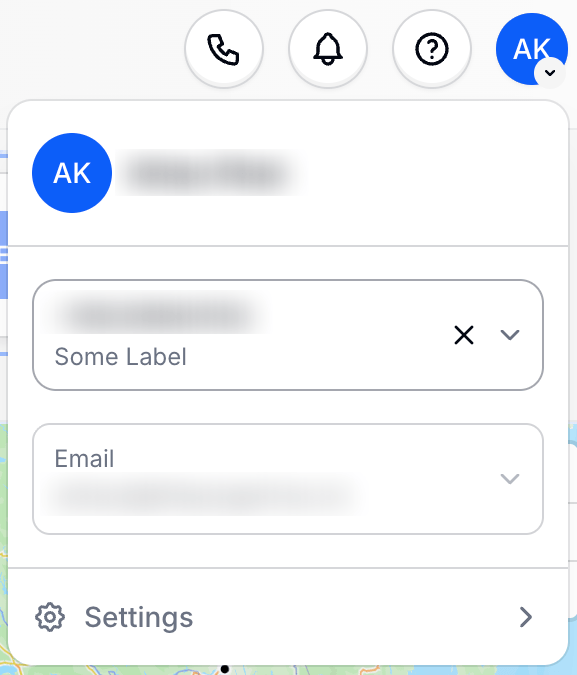
Open your profile menu and choose your verified number from the phone-number dropdown. Contact details are hidden.
Open My Buyers or the relevant deal, and find the buyer you want to contact.
Check the buyer's phone number, then select the call icon beside it.
If prompted, allow microphone access in your browser.
Use the on-screen calling controls to manage and end the call.
The native dialer lets you call a buyer from Genius Studio. Power Dialer adds a queue for working through buyers with single-line calling in Genius Mode.
When using Power Dialer, the calling bar shows the current call status and your position in the callable queue.

Power Dialer calling bar showing connection status and queue progress. Contact details are hidden in this example.
The Record calls switch is in Settings → Communications. Check this setting if you want call recording enabled. The screenshot below shows it switched off.

The Record calls switch, shown off.
Open your profile avatar in the top-right corner of the Genius Studio tab, then select Settings.
Check the number you entered and make sure it can receive calls. If it uses forwarding or an automated menu, confirm you can answer the verification call and enter the code. If verification still fails, contact support.
Check that you've selected it in the Phone Number dropdown. Also check the buyer's number and your browser's microphone permission.
Check that your microphone isn't muted and your browser has permission to use it. Confirm the correct microphone or headset is selected in your device settings.
Check your internet connection and note any error shown. If the issue continues, contact support with the time of the attempt and a screenshot of the error.
For a visual guide to opening the workspace and verifying your calling number, watch the Genius Studio and dialer walkthrough.
Contact Dispo Genius support through the in-app chat. Include your sub-account name, the step you're stuck on, and any error message. Don't share verification codes.